
Creating and Using Apps for Teaching and Learning
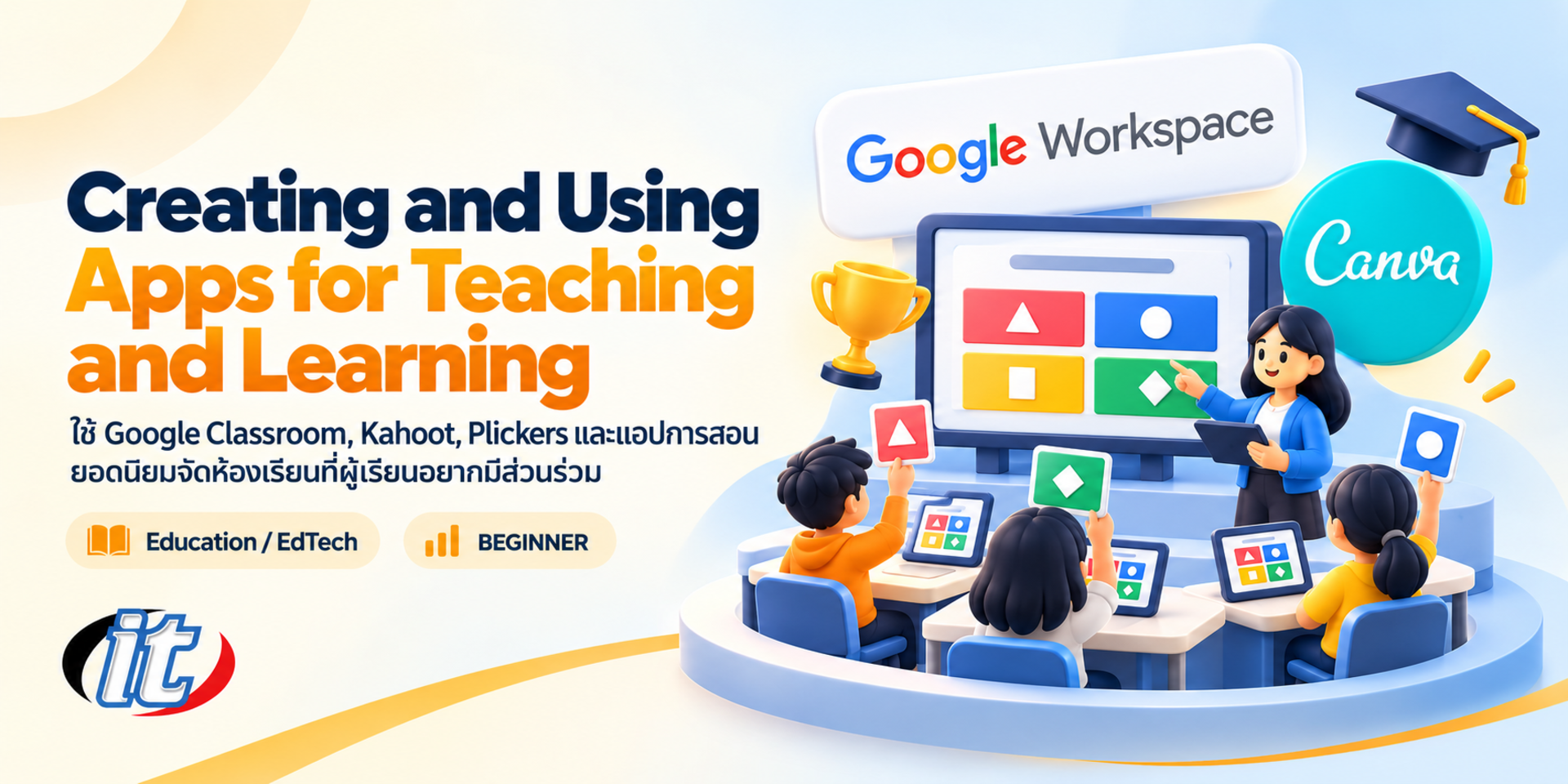
Creating and Using Apps for Teaching and Learning is a course for teachers on running classes with Google Classroom and Google Forms, live quizzes and games with Kahoot, Plickers and Wayground, shared boards on Padlet and teaching materials made in Canva for Education. It suits teachers, lecturers and trainers, and you leave with a one-lesson plan built around these apps.
- Duration12 hours · 2 days
- FormatOnsite / live online
- Next roundOn request
- CertificateIncluded
Course overview
Today's classrooms use apps at almost every step: handing out and collecting work online, quizzes that mark themselves, quiz games that wake learners up and online boards where learners think together. But there are many apps to choose from and they change quickly, so many teachers are unsure which app suits which activity, and how to use it without losing teaching time or putting learners' data at risk.
This course takes teachers through popular teaching apps one by one, from both the teacher's and the learner's side. It starts with Google Classroom for running classes, assigning work and marking with rubrics, Google Forms quizzes and an overview of Gemini in Classroom for schools that have it turned on, then moves on to Kahoot!, Plickers and Wayground for quizzes and games, Padlet for shared thinking activities and Canva for Education for creating materials. It ends with a workshop to design a single lesson that uses these apps together (2 days, 6 hours per day, 12 hours in total, Beginner level).
What you’ll gain
- Choose apps that match your teaching goals and use them safely with learners' personal data
- Run classes, assign work, mark and grade with Google Classroom
- Create self-marking quizzes with Google Forms and link them to Classroom
- Run real-time games and quizzes with Kahoot!, Plickers and Wayground
- Run shared thinking activities with Padlet and create teaching materials with Canva for Education
- Design lessons that combine several apps to motivate learners
Who this course is for
- Teachers and lecturers inside and outside the formal school system who want to use technology in class
- Trainers and in-house instructors who want activities that keep participants involved
- Student teachers and people preparing to teach
- IT staff and technology coordinators in schools and colleges
Prerequisites
- Basic computer skills, such as creating files and folders and changing basic settings
- Able to search the internet and use email
- Able to install apps on a smartphone
- No previous graphics software experience needed
Curriculum
Course Details
This is the 2026 edition of the Creating and Using Apps for Teaching and Learning course. It runs for 2 days, 6 hours per day (12 hours in total, 09:00-16:00), as lectures with a lab in every topic, at Beginner level. It keeps Google Classroom, Kahoot! and Plickers from the original edition with procedures updated for today's screens, and adds Google Forms quizzes, rubrics, Wayground (the new name of Quizizz), Padlet, Canva for Education and an overview of Gemini in Google Classroom, with guidance on protecting learners' personal data. Learners take home sample classes, quizzes, review games and a one-lesson plan for their own classroom.
Day 1 Running Online Classes with Google Classroom
Section 1: Classroom Apps Today
- Choosing apps by purpose: running classes, testing, shared thinking and creating materials
- School accounts versus personal accounts, and free versus paid plans
- Learners' personal data, PDPA basics and each platform's minimum age rules
- Classrooms where not every learner has a device: choosing apps for the real context
Section 2: Lab: Google Classroom for Teachers
- Creating a class, inviting learners by code or link and adding co-teachers
- Organising Classwork into topics and posting announcements in the Stream
- How assignments, quiz assignments, questions and materials differ
- Lab: create a class for one subject with work and due dates
Section 3: Lab: Marking, Grading and Feedback
- Reviewing work, writing comments and returning work for revision
- Creating rubrics and using them to grade consistently
- Grade categories and the class gradebook (Grades)
- Lab: mark sample work with a rubric and summarise grades for the whole class
Section 4: Lab: Google Classroom for Learners and the Mobile App
- Joining a class and viewing assigned work
- Doing and handing in work from a computer or the mobile app, including photos of work done on paper
- Viewing the teacher's marks and comments
- Lab: switch to the learner's role to see the problems learners really meet
Section 5: Lab: Quizzes with Google Forms
- Turning on quiz mode and setting answer keys, points and answer feedback
- Multiple choice, checkbox and short answer questions
- Sending the quiz through Classroom and importing grades into the gradebook
- Lab: create a self-marking pre-lesson quiz
Section 6: Lab: Gemini in Google Classroom for Teachers
- Overview and the conditions for turning it on by the school's administrator
- Drafting lesson plans, questions and rubrics from the Gemini tab
- Gems and notebooks with teacher-chosen sources for learners to review
- Lab: draft review questions and check their accuracy before every assignment
Day 2 Games, Quizzes, Activities and Teaching Materials
Section 7: Lab: Live Quiz Games with Kahoot!
- Creating a kahoot and choosing question types that suit the content
- Hosting live in class, with learners joining by PIN and nickname
- Assigning it for self-paced play outside class and reading the per-question report
- Lab: run a review game and use the results to plan extra support
Section 8: Lab: Testing with Plickers Cards
- Testing the whole class without learner devices, using one paper card per learner
- Creating a class, adding learners and printing cards
- Building question sets in the Library and putting questions on screen
- Lab: scan the whole room's answers with the mobile app and review the report
Section 9: Lab: Practice and Review with Wayground
- How Wayground (formerly Quizizz) differs from Kahoot!
- Letting learners work at their own pace in class or as homework
- Finding and adapting question sets from the library to fit your own content
- Lab: assign practice and analyse the questions most learners got wrong
Section 10: Lab: Shared Thinking Activities with Padlet
- Board formats: Wall, Grid, Timeline and Map
- Letting learners post text, pictures and links together
- Privacy settings and approving posts before they appear
- Lab: an exit ticket and an end-of-lesson brainstorming board
Section 11: Lab: Creating Teaching Materials with Canva for Education
- Canva for Education access for verified teachers
- Creating worksheets, slides, infographics and certificates from templates
- Assigning design tasks to learners and connecting with Google Classroom
- Lab: make a worksheet and slides for a lesson and check image rights
Section 12: Workshop: A Single Lesson with Apps
- Planning the flow: lead-in, teaching, shared thinking and assessment
- Choosing an app for each stage and a backup plan for internet problems
- A checklist for learner data, privacy settings and age suitability
- Workshop: present your own lesson and exchange ideas with fellow teachers
Schedule & training options
For individuals — public rounds
No public rounds are open right now. Join the waiting list and we will contact you first when the next round opens, or ask us on LINE. Or call 02-570-8449 or 088-807-9770
For organisations — in-house / private
- Tailor the content to your team’s tools and projects
- Your dates, at your office or live online
- Quotation with tax ID for procurement
Instructors

Frequently asked questions
How do you create a class and assign work in Google Classroom?
Sign in to Google Classroom with your school or Google account, create a class and give it a subject and section name, then invite learners by class code, link or email. To assign work, go to Classwork, create an Assignment, add instructions and files, set points, a due date and a rubric if you have one, and place it in a topic so learners can find it easily. When learners hand in their work, you can review it, comment and return it with a grade in one place.
How do you use Kahoot! for a live quiz in class?
Create a new kahoot, add questions, answer options, time limits and the correct answers, then start a live game. The screen at the front shows a game PIN, and learners open the Kahoot! website or app and enter the PIN and a nickname. When everyone has joined, start the game: questions appear on screen and learners answer on their own devices. Afterwards, check the per-question report to find topics learners have not yet understood, and assign the kahoot for practice outside class. Some features depend on your plan.
How does Plickers differ from Kahoot!, and which classrooms suit it?
With Kahoot!, every learner answers on their own device. With Plickers, learners hold a printed paper card and turn it so that side A, B, C or D is at the top to choose an answer, and the teacher scans the whole room with a mobile app. Plickers therefore suits classrooms where not every learner has a device, younger learners, or times when you want less screen time, while Kahoot! and Wayground suit classrooms where learners have devices and you want a game atmosphere.
Can I use Gemini in Google Classroom, and what do I need?
Google makes Gemini in Google Classroom available to all Google Workspace for Education editions, but your school's administrator decides who can use it. Teachers with access see a Gemini tab in Classroom for drafting lesson plans, questions and rubrics, and can create Gems or notebooks from sources they choose for learners to review with. Always check AI output for accuracy and suitability before assigning it. This course gives an overview, and the AI for Teachers and Educators course goes deeper.
Who is the Creating and Using Apps for Teaching and Learning course for, and what do I need to know?
It suits teachers and lecturers inside and outside the formal school system, trainers and in-house instructors, student teachers and school technology coordinators. You need to be able to use a computer, the internet and email, and install apps on a smartphone. No graphics software or programming background is needed, and you should bring content from one of your own lessons for the workshop.
Can the Creating and Using Apps for Teaching and Learning course be run for teachers at our school?
Yes. It can be run in-house for teachers at your school or staff in your organisation, with examples adapted to the grade levels and subject areas of the participants, and practice can use your school's Google Workspace for Education accounts. You can request a quotation from this page, or contact us on LINE @itgenius or by phone on 02-570-8449.