
Basic Microsoft Access for Microsoft 365
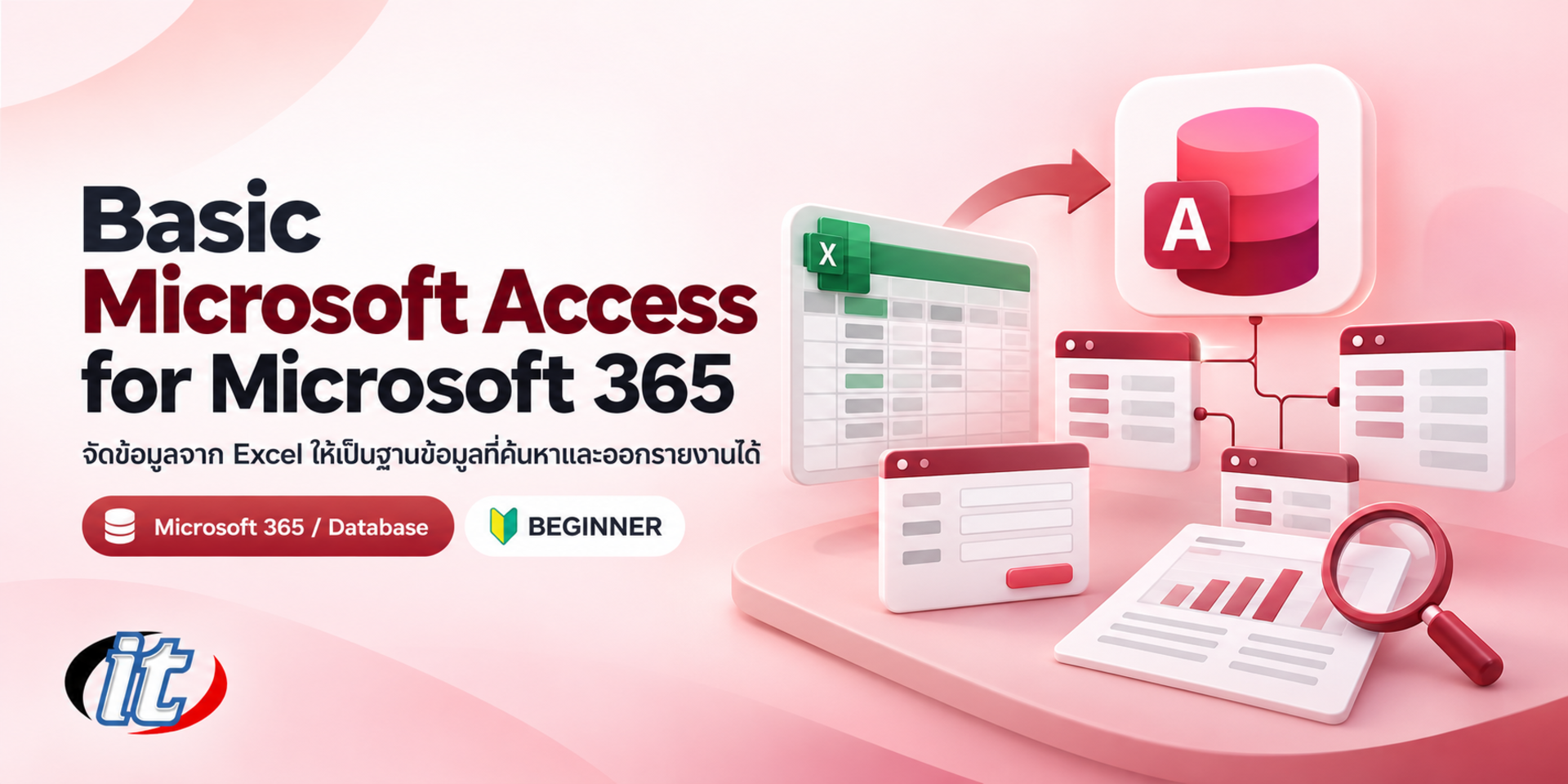
Basic Microsoft Access for Microsoft 365 is a beginner course in relational databases with Access, from designing tables and relationships and importing data from Excel to finding and summarising data with queries, then building data entry forms and reports. It suits staff who keep large amounts of data in Excel, administrative teams, teachers and students.
- Duration12 hours · 2 days
- FormatOnsite / live online
- Next roundOn request
- CertificateIncluded
Course overview
Work in many departments starts in Excel, but as the data grows and more people share it, problems appear: duplicated records, inconsistent typing, links between lists that are hard to follow, and reports rebuilt by hand every month. Microsoft Access organises data as a relational database, with tables that check the data as it is entered, queries for finding information, forms for data entry and reports you can produce immediately, all without writing a program.
This course lays the foundations, from the ideas behind relational databases to designing tables and data types, setting rules that keep data accurate and creating relationships between tables, then importing or linking data from Excel. Learners go on to find and analyse data with queries, get to know SQL view, build data entry forms and produce reports with charts, and finish with a workshop that builds a small database system from start to finish. It works with both Access in Microsoft 365 and Access 2024. (2 days, 6 hours per day, 12 hours in total, Beginner level.)
What you’ll gain
- Understand relational database concepts and know which jobs suit Access and which suit Excel
- Create a new database and work confidently in the Access interface
- Design tables, choose data types, set primary keys and rules that check data accuracy
- Create relationships between tables with referential integrity
- Import, link and export data with Excel and CSV files
- Find and analyse data with queries and read the statements in SQL view
- Build data entry forms and reports with charts from tables and queries
Who this course is for
- Staff who keep large amounts of data in Excel and want to organise it as a database
- Administrative, HR and warehouse staff who maintain registers and regular reports
- Teachers, lecturers and students who need database fundamentals
- IT staff who look after or improve existing Access files in their organisation
Prerequisites
- Comfortable using a computer and Windows
- Basic Excel skills, such as entering data as a table and sorting it
- Able to read English commands on the program screen reasonably well
- A Windows laptop with Access from Microsoft 365 or Access 2024 (Access is not available on macOS)
Curriculum
Course Details
This is the 2026 edition of the Basic Microsoft Access 2010/2013 course. It runs for 2 days, 6 hours per day (12 hours in total, 09:00-16:00), as lectures with labs built on a sample shop database, at Beginner level. The content has been rewritten for Access in Microsoft 365 and Access 2024, adding linked Excel data, SQL view, modern charts in reports and backup practice. Access runs on Windows only, and learners use their own or their company's copy. Learners take home the course handbook, sample database and Excel files, and the database they build in the workshop.
Day 1 Designing the Database and Its Tables Correctly
Section 1: Relational Database Concepts
- Tables, records and fields, and why data is split across several tables
- The duplicated and conflicting data you get when everything sits in one table
- What Access is good for, and when to use Excel or a server database instead
- Workshop: split a sample Excel file into tables on paper
Section 2: Lab: The Access Interface and Creating a Database
- Create a blank database or one from a template, and the .accdb file
- The Navigation Pane and the main objects: tables, queries, forms and reports
- Enable Content, trusted locations and file security
- Lab: create a sample shop database and explore its objects
Section 3: Lab: Designing Tables and Data Types
- The Short Text, Long Text, Number, Currency, Date/Time, Yes/No and AutoNumber data types
- Primary keys and choosing a field whose values are unique
- Field Size, Format, Default Value and Caption
- Lab: build customer, product and order tables in Design view
Section 4: Lab: Rules That Keep Data Reliable
- Required, Validation Rule and Validation Text
- Input masks for codes, phone numbers and dates
- The Lookup Wizard for pick lists instead of typing
- Lab: try entering bad data and see how the rules you set prevent it
Section 5: Lab: Relationships Between Tables
- One-to-many relationships, and many-to-many through a junction table
- Create relationships in the Relationships window
- Referential integrity, cascade update and cascade delete
- Lab: link the customer, order, order line and product tables
Section 6: Lab: Importing, Linking and Looking After Data
- Import data from Excel and CSV and check the data types
- Linked tables: connect to Excel or another Access file without copying the data
- Compact and Repair, backups, and care points when sharing an Access file on a network
- Lab: import a product list from Excel and export data back to an Excel file
Day 2 Finding, Analysing, Entering and Reporting Data
Section 7: Lab: Finding Data with Select Queries
- Create queries with the Query Wizard and Query Design
- Criteria with AND, OR, Between, Like and wildcards
- Parameter queries that let users enter their own conditions
- Lab: build a query that finds orders by customer and date range
Section 8: Lab: Analysing Data with Queries
- Queries across several tables and the types of join
- Calculated fields with the Expression Builder
- Totals queries: Sum, Count, Avg and Group By
- Lab: summarise monthly sales by product category
Section 9: Lab: SQL View and Action Queries
- Open SQL view and read the SELECT, FROM, WHERE and ORDER BY statements Access writes for you
- SQL view helpers in Microsoft 365, such as syntax highlighting and auto-completion
- Update, Append, Make Table and Delete queries
- Lab: back up the data, then change prices for a whole category with an update query
Section 10: Lab: Data Entry Forms
- Create forms with the Form Wizard and adjust them in Layout and Design view
- Key controls: text boxes, combo boxes, check boxes and command buttons
- Main forms and subforms for combining several tables in one form
- Lab: build an order entry form with order lines in a subform
Section 11: Lab: Reports and Charts
- Create reports from tables and queries with the Report Wizard
- Grouping, sorting and subtotals in reports
- Add a modern chart to a report and export it as PDF
- Lab: build a sales-by-customer report with a summary chart
Section 12: Workshop: A Small Database System
- Workshop: design tables and relationships from a real brief, such as an asset register or a customer list
- Import starting data from Excel and build the queries you use most
- Build a data entry form, a monthly report and a navigation form
- Review a checklist for looking after Access files and next steps at intermediate level
Schedule & training options
For individuals — public rounds
No public rounds are open right now. Join the waiting list and we will contact you first when the next round opens, or ask us on LINE. Or call 02-570-8449 or 088-807-9770
For organisations — in-house / private
- Tailor the content to your team’s tools and projects
- Your dates, at your office or live online
- Quotation with tax ID for procurement
Instructors

Frequently asked questions
What is a relational database, and how is it different from keeping data in Excel?
A relational database stores data in separate tables by subject, such as customers, products and orders, linked by keys. Each fact is recorded in one place, so a single change applies everywhere, and you can enforce data types and validation rules. Excel often keeps everything on one sheet, which leads to duplication, so a database is easier to keep accurate as data grows or several people enter it. Excel remains better for calculation and analysis, so the two work well together.
How do you create a table in Access and set a primary key?
Create a new table and open Design view, then name each field and choose a data type that fits the data, such as Short Text, Number, Date/Time or Currency. Select a field whose value is unique for every row, such as a customer code, and click Primary Key; if there is no suitable field, use an AutoNumber field. Save the table and enter data in Datasheet view.
What are queries in Access used for, and how do you create one?
A query retrieves records that meet your conditions, such as customers in one province or orders placed this month, can combine related tables into a single result and can summarise figures with totals. Build one in Query Design by adding the tables, dragging the fields you need into the grid and entering conditions in the Criteria row. The results can feed forms and reports, and you can see the statement Access writes for you in SQL view.
Who is the Basic Microsoft Access for Microsoft 365 course for, and what should I know beforehand?
It suits staff who keep large amounts of data in Excel, administrative, HR and warehouse staff, teachers, lecturers and students, and IT staff who look after Access files in their organisation. You should know Windows and basic Excel, be able to read English commands on screen reasonably well, and have a Windows laptop with Access from Microsoft 365 or Access 2024, as Access is not available on macOS.
What will I be able to do after the Basic Microsoft Access for Microsoft 365 course?
You will be able to design database tables and relationships, set data types and validation rules, import and link data from Excel, find and summarise data with queries, read statements in SQL view, build data entry forms and produce reports with charts as PDF files. Participants who complete the training receive a Certificate of Completion with its own number, which can be verified online.
Can the Basic Microsoft Access for Microsoft 365 course be run in-house for our team?
Yes. It can be run in-house for your team, with examples adapted to your own work, such as using your department's real registers or Excel files as the workshop brief. You can request a quotation from this page, or contact us on LINE @itgenius or by phone on 02-570-8449.
Related articles
Articles are published in Thai.