
Programming for Kids with Scratch
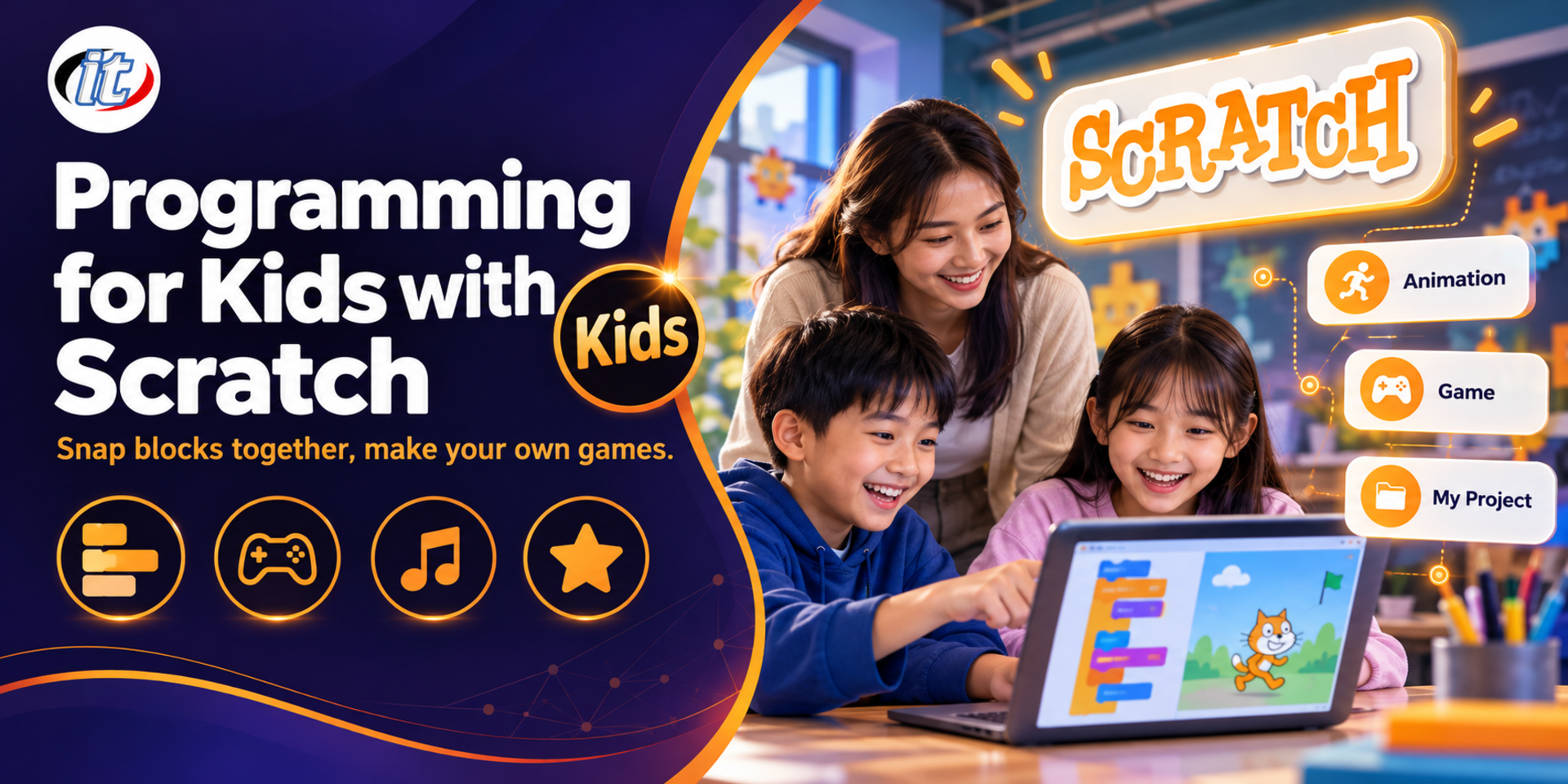
Programming for Kids with Scratch is a hands-on course in block-based coding, from sprites, backdrops and sounds to loops, conditions and variables, with a game or animation project in every topic. It suits children aged eight and up, students starting to program and teachers who want to teach with Scratch, and you leave able to build your own game.
- Duration12 hours · 2 days
- FormatOnsite / live online
- Next roundOn request
- CertificateIncluded
Course overview
Scratch is a block-based programming language from the MIT Media Lab, designed especially for children aged about 8 to 16. Children build programs by snapping command blocks together like building bricks and see the result on the stage straight away, with no typing errors to worry about. It is free on the scratch.mit.edu website and in the offline Scratch app, and it supports Thai. Making their own games and animations is a fun way for children to practise step-by-step thinking, problem solving and creativity at the same time.
This course is hands-on throughout. Children start with the Scratch screen, sprites, backdrops and sounds, then practise the key ideas of programming one at a time: sequence, loops, events, conditions, variables, broadcasts and clones, through projects they can finish in each session, such as an aquarium, a piano, an interactive story, a fruit-catching game and a chase game. They go on to draw patterns with the Pen extension and use extensions that make characters speak, and finish by designing and building a game of their own to show friends and parents. (2 days, 6 hours per day, 12 hours in total, Beginner level.)
What you’ll gain
- Understand what programming is and use Scratch on the web or in the offline app
- Work with sprites, costumes, backdrops and sounds to build a story or a game
- Control sprites with sequences, loops and events
- Use conditions, sensing and variables to build games with scores and timers
- Use broadcasts and clones so several sprites can work together
- Draw patterns with the Pen extension and make custom blocks with My Blocks
- Plan, build, test and debug a game of their own from start to finish
Who this course is for
- Children aged 8 and over who love games and want to make their own games or animations
- School students who want to start programming before moving on to other languages
- Teachers and trainers who want to use Scratch as a teaching tool in class
- Parents who want to understand Scratch so they can help their children practise at home
Prerequisites
- Able to use a mouse and keyboard and read Thai comfortably; no programming experience is needed
- Children under 8 should attend with a parent
- A laptop or computer that can open scratch.mit.edu, or has the offline Scratch app installed
- Headphones and a wired mouse make the sound labs and dragging blocks easier
Curriculum
Course Details
This is the 2026 edition of the Programming for Kids with Scratch course. It runs for 2 days, 6 hours per day (12 hours in total, 09:00-16:00), as playful, hands-on sessions with a project in every topic, at Beginner level. The content has been rewritten for Scratch 3 on scratch.mit.edu and the offline Scratch app, adding broadcasts, clones, My Blocks, the Pen, Music, Text to Speech and Translate extensions, debugging and using the Scratch community safely. Scratch is completely free. Children under 8 should attend with a parent. Learners take home the course handbook, starter projects and answers for every lab, and the game they build in the workshop to keep practising at home.
Day 1 Meet Scratch and Tell Stories with Code
Section 1: What Is Programming? Meet Scratch
- Programs are all around us, from games and phone apps to robots
- Think step by step like a programmer: break a big job into small ones
- What Scratch is, on scratch.mit.edu or in the offline Scratch app
- Scratch accounts, saving work and the rules for using the community safely
- Lab: play sample projects, look at the code inside and remix one as your own
Section 2: Lab: The Scratch Screen and Your First Program
- The stage, sprites and the coding area
- The Motion, Looks, Sound and Events block categories
- The green flag, the stop button and full-screen stage view
- Lab: make the Scratch cat walk, turn and say hello
Section 3: Lab: Sprites, Backdrops and Costumes
- Choose sprites from the library, draw your own in the Paint Editor or upload a picture
- Switch costumes so a sprite looks as if it is moving
- Add backdrops and change scenes
- x and y positions on the stage and setting a starting point
- Lab: a beautiful aquarium with several fish swimming and flapping their fins
Section 4: Lab: Sequence, Loops and Events
- Why order matters, and why swapping blocks changes the result
- Repeat with repeat and forever, and set the pace with wait
- Events: when a key is pressed, when a sprite is clicked and when the green flag is clicked
- Lab: steer a sprite around the stage with the arrow keys
Section 5: Lab: Sound and Music
- Add sounds from the library, record your own voice and make simple sound edits
- Turn on the Music extension to play notes and different instruments
- Set the tempo and play a short tune with loops
- Lab: my piano, with a note for each key press or click
Section 6: Lab: Interactive Stories
- Make sprites talk and think with the say and think blocks
- Ask the player with ask and wait, then use the answer in the story
- Send signals between sprites with broadcasts to tell a story scene by scene
- Lab: a fill-in-the-words story where players type words and get their own funny tale
Day 2 Build Games with Conditions, Variables and Clones
Section 7: Lab: Conditions and Sensing
- Make decisions with if and if else
- Detect touching a sprite, touching a colour and the stage edge with the Sensing blocks
- Compare values with the greater than, less than and equals Operators blocks
- Lab: a maze game where hitting a wall sends you back and reaching the exit wins
Section 8: Lab: Variables, Scores and Timers
- What a variable is, and how to create and name one
- Use set and change for the score, lives and time left
- Show variables on the stage and pick random positions with pick random
- Lab: a game of catching falling fruit with a score and a countdown
Section 9: Lab: Clones and a Chase Game
- What a clone is, and making many sprites from one
- when I start as a clone, and deleting clones when they are done
- Make the game harder as the score rises with a speed variable
- Lab: a chase game where the hero eats sweets and dodges more and more ghosts
Section 10: Lab: Drawing Patterns with Pen and My Blocks
- The Pen extension: pen down, pen up, colour and line size
- Draw triangles, squares and stars with loops and turns
- Make your own blocks with My Blocks, including values passed in
- Lab: draw colourful geometric flower patterns with your own blocks
Section 11: Lab: Extensions That Make Sprites Talk
- Text to Speech lets a sprite read text aloud in different voices
- Translate turns text into another language inside the project
- Lists for storing several questions and answers
- Lab: a bilingual robot teacher that asks vocabulary questions and speaks the answers
Section 12: Workshop: Build My Own Game
- Plan the game on paper: characters, goal, rules and scenes
- Debug like a programmer: test one part at a time and find what went wrong
- Save as an .sb3 file and share projects safely under the community rules
- Workshop: build your own game, present it and let friends play it
Schedule & training options
For individuals — public rounds
No public rounds are open right now. Join the waiting list and we will contact you first when the next round opens, or ask us on LINE. Or call 02-570-8449 or 088-807-9770
For organisations — in-house / private
- Tailor the content to your team’s tools and projects
- Your dates, at your office or live online
- Quotation with tax ID for procurement
Instructors
Frequently asked questions
What is Scratch, and why does it suit children who are new to programming?
Scratch is a block-based programming language from the MIT Media Lab, designed for children aged about 8 to 16. It is free on scratch.mit.edu and in the offline Scratch app. Children build programs by snapping command blocks together instead of typing code, so there are no spelling errors to worry about and results appear on the stage straight away. They still learn key ideas such as sequence, loops, conditions and variables, which carry over to other languages.
What are the steps to make a simple game in Scratch?
Start by planning who the character is and what the goal and rules are, then choose or draw a sprite and a backdrop. Script the sprite to move with the arrow keys using event and motion blocks, use a loop and a condition to check whether it touches an object, and create a score variable that goes up when an item is collected. Add sounds, click the green flag to play and fix any bugs. The course builds several kinds of game, such as a maze, a fruit-catching game and a chase game.
What is a variable in Scratch, and what is it used for?
A variable stores a value that can change while the program runs, such as the score, the number of lives or the time left. You create one in the Variables category, give it a name, use the set block for its starting value and the change block to increase or decrease it. Variables can be used in conditions, for example showing a winning message when the score reaches 10, and can be shown on the stage. To store several values, such as a set of quiz questions, use a list.
Who is the Programming for Kids with Scratch course for, and what should I know beforehand?
It suits children aged eight and up, students who want to start programming, teachers or trainers who want to teach with Scratch, and parents who want to help their children practise at home. No programming experience is needed: learners just need to use a mouse and keyboard and read Thai comfortably. Children under eight should attend with a parent.
What will I be able to do after the Programming for Kids with Scratch course?
Learners will understand basic programming ideas, set up sprites, backdrops, sounds and music in Scratch, script with loops, conditions, variables, broadcasts and clones, draw patterns with Pen, make their own blocks, and build their own game with a score and a timer, with project files to keep practising at home. Participants who complete the training receive a Certificate of Completion with its own number, which can be verified online.
Can the Programming for Kids with Scratch course be run in-house for a school or organisation?
Yes. It can be run in-house, with projects adapted to the learners' age group, for example for a whole class of students or for school teachers who plan to use Scratch in their own lessons. You can request a quotation from this page, or contact us on LINE @itgenius or by phone on 02-570-8449.