
Microsoft Office 2019
หลักสูตร Microsoft Office 2019 เป็นการอบรมใช้งานชุด Office 2019 ตั้งแต่หน้าตาใหม่และการปรับแต่งเครื่องมือ ไปจนถึงการทำงานกับ Word, Excel, PowerPoint และ Outlook พร้อมฟีเจอร์ใหม่อย่างเอฟเฟกต์ Morph และ Zoom ใน PowerPoint และโหมด Focus ใน Word เหมาะกับนักศึกษา ครู อาจารย์ ทีมไอที และผู้ใช้งานทั่วไป
- ໄລຍະເວລາ12 ຊົ່ວໂມງ · 2 ມື້
- ຮູບແບບຢູ່ສະຖາບັນ / ອອນລາຍສົດ
- ຮອບຕໍ່ໄປເປີດຕາມຄຳຂໍ
- ໃບຢັ້ງຢືນມີໃບຢັ້ງຢືນ
ພາບລວມຫຼັກສູດ

PowerPoint 2019 เพิ่มเอฟเฟคต์ Morph, Zoom และรองรับการใช้ปากกามากขึ้น Excel 2019 เพิ่มฟีเจอร์ด้านการวิเคราะห์ข้อมูลหลายอย่าง เพิ่มสูตรใหม่ๆ และปรับปรุง PowerPivot Word 2019 เพิ่มโหมด Focus สำหรับแสดงเอกสารอย่างเดียว, ตัวช่วยอ่านออกเสียง Read Aloud, ธีมสีดำ Outlook 2019 เพิ่มโหมดจัดระเบียบอีเมล Focused Inbox เปลี่ยนวิธีการติดตั้งโปรแกรม
จากการติดตั้งแบบเดิมมาเป็น Click-to-Run (C2R) แบบเดียวกับที่ใช้ใน Office 365 ในหลักสูตรนี้จะเป็นการแนะนำการใช้งานตั้งแต่พื้นฐาน ไปจนถึงเทคนิคพิเศษต่าง ๆ เพื่อให้ใช้งานชุด Office 2019 ได้เต็มประสิทธิภาพโดยเนื้่อหาจะครอบคลุม Microsoft Word 2019, Excel 2019, Powerpoint 2019 และ Outlook 2019 ผู้เรียนจะได้เรียนรู้ผ่าน workshop มากมายในหลักสูตรนี้
ສິ່ງທີ່ທ່ານຈະໄດ້ຮັບ
- เรียนรู้และทำความเข้าใจกับหน้าตา (interface) ใหม่ของ Office 2019
- ปรับแต่งชุดเครื่องมือและหน้าตาให้เหมาะสมกับการทำงาน
- เรียนรู้การทำงานกับ Microsoft Word 2019
- เรียนรู้การทำงานและเทคนิคใหม่ๆ ใน Microsoft Excel 2019
- เรียนรู้การออกแบบสร้างสไลด์ด้วยเทคนิคต่างๆ ใน Microsoft Powerpoint 2019
- เรียนรู้การทำงานแบบใหม่ๆ กับเครื่องมือการส่งอีเมล์อันทรงพลังกับ Microsoft Outlook 2019
- มี Workshop ประกอบการเรียนรู้มากมาย
ຫຼັກສູດນີ້ເໝາະສຳລັບ
- นักเรียนนักศึกษา
- ครู อาจารย์ วิทยากรที่สนใจ
- นักวิชาการ นักไอที หรือผู้ดูและระบบ
- ผู้สนใจทั่วไปที่ต้องการศึกษาการใช้งาน Microsoft Office 2019
ພື້ນຖານຂອງຜູ້ເຂົ້າຝຶກອົບຮົມ
- พื้นฐานการใช้งานคอมพิวเตอร์ เช่น Copy, Paste สร้างไฟล์และโฟลเดอร์
- การใช้งานระบบปฎิบัติการ Windows / MacOS
ຫົວຂໍ້ການຝຶກອົບຮົມ
01 เรียนรู้ความสามารถใหม่ๆ ใน Microsoft Office 2019 มากมาย อาทิ
Microsoft Translator
ตัวช่วยในการแปลภาษา ทั้งบนหน้าเอกสาร Word หรือจะแปลทุก Slide ใน PowerPoint ก็ทำได้ด้วย หรือจะเลือกแปลเพียงบางคำ บางประโยคก็สามารถทำได้เช่นกัน
ทำภาพเคลื่อนไหวด้วย Morph
แปลงภาพ หรือทำภาพเคลื่อนไหวจากจุดหนึ่งไปยังอีกจุดหนึ่ง เคลื่อนไหวได้เนียมและราบรื่นมากๆ ดีกว่าการใช้การเคลื่อนไหวด้วยคำสั่งอื่นๆ
Zoom คำสั่งในการสลับสไลด์ไปมา
ปกติการเล่นสไลด์ จะไปตามลำดับจาก 1 ไป 2 และ 3 แต่ด้วยคำสั่ง Zoom จะทำให้เราสามารถไปสไลด์ที่เราต้องการได้ง่าย หรือจะย้ายกลับไปมาในสไลด์เดิมก็ได้เช่นกัน
รองรับการสั่งผ่านปากกา Bluetooth
สามารถใช้ปากกา Surface หรือจะใช้ปากกาที่มี Bluetooth สั่งการได้โดยตรง อย่างเช่น ปากกาของ Samsung Galaxy Note 9 เป็นต้น
Function คำสั่งใหม่ๆ ใน Excel
ตัวอย่างคำสั่งใหม่ ใน Excel ได้แก่ TEXTJOIN, CONCAT, IFS
คำสั่งในการคำนวนใหม่บน Word
สำหรับคนที่มักจะใช้การคำนวณต่างๆ บน Microsoft Word คำสั่ง LaTeX ก็สามารถใช้งานได้แล้ว
รองรับการใช้คำสั่ง Ink (หมึก)
ทำให้เราสามารถเขียนข้อความบนเอกสาร PowerPoint ได้โดยตรง หรือจะใช้คำสั่ง Draw เพื่อช่วยบนหน้าจอของเราบนเอกสารใน Microsoft Word, Excel หรือ PowerPoint ก็สามารถทำได้เช่นกัน
Module 1 Explore Office 2019
1.1 Work in the Office user interface
- Identify app window elements
- Work with the ribbon and status bar
- Sidebar: Adapt procedures for your environment
- Change Office and app options
- Manage account information
- Sidebar: Microsoft account options
- Manage app options
- Customize the Quick Access Toolbar
- Customize the ribbon
1.2 Create and manage files
- Create files
- Open and move around in files
- Display different views of files
- Display and edit file properties
- Sidebar: File types and compatibility with earlier versions of Office apps
- Save and close files
- Sidebar: Save files to OneDrive
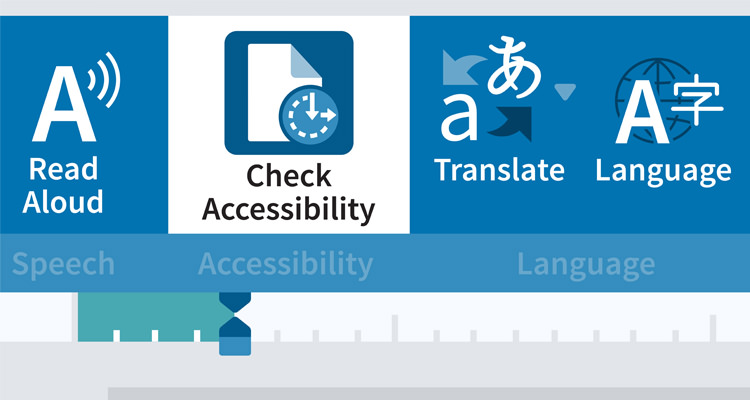
Module 2 Microsoft Word 2019
2.1 Modify the structure and appearance of text
- Apply paragraph formatting
- Configure alignment
- Configure vertical spacing
- Configure indents
- Sidebar: Configure paragraph borders and shading
- Structure content manually
- Apply character formatting
- Sidebar: Character formatting and case considerations
- Create and modify lists
- Sidebar: Format text as you type
- Apply built-in styles to text
- Apply styles
- Manage outline levels
- Change the document theme
2.2 Collaborate on documents
- Mark up documents
- Insert comments
- Track changes
- Display and review document markup
- Display markup
- Review and respond to comments
- Review and process tracked changes
- Sidebar: Remember to check for errors
- Compare and merge documents
- Compare and combine separate copies of a document
- Compare separate versions of a document
- Control content changes
- Restrict actions
- Restrict access by using a password
- Coauthor documents
2.3 Merge data with documents and labels
- Understand the mail merge process
- Start the mail merge process
- Get started with letters
- Get started with labels
- Get started with email messages
- Choose and refine the data source
- Select an existing data source
- Create a new data source
- Refine the data source records
- Sidebar: Refresh data
- Insert merge fields
- Preview and complete the merge
- Create individual envelopes and labels
- Generate individual envelopes
- Generate individual mailing labels
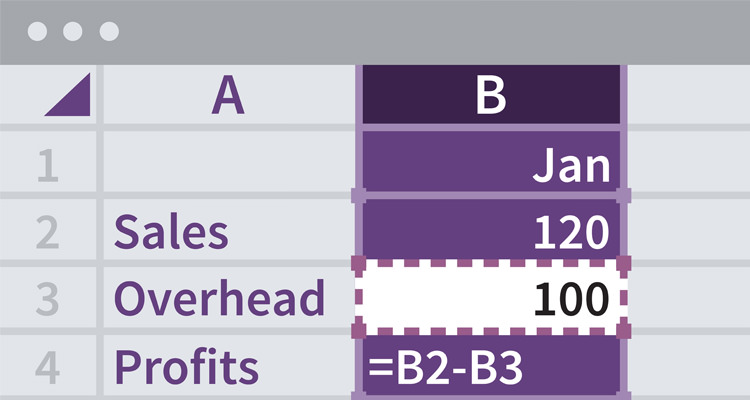
Module 3 Microsoft Excel 2019
3.1 Perform calculations on data
- Name groups of data
- Create formulas to calculate values
- Sidebar: Operators and precedence
- Summarize data that meets specific conditions
- Set iterative calculation options and enable or disable automatic calculation
- Use array formulas
- Find and correct errors in calculations
3.2 Manage worksheet data
- Limit data that appears on your screen
- Manipulate worksheet data
- Select list rows at random
- Summarize data in worksheets that have hidden and filtered rows
- Find unique values within a data set
- Define valid sets of values for ranges of cells
3.3 Reorder and summarize data
- Sort worksheet data
- Sort data by using custom lists
- Organize data into levels
- Look up information in a worksheet
3.4 Analyze alternative data sets
- Examine data by using the Quick Analysis Lens
- Define an alternative data set
- Define multiple alternative data sets
- Analyze data by using data tables
- Vary your data to get a specific result by using Goal Seek
- Find optimal solutions by using Solver
- Analyze data by using descriptive statistics
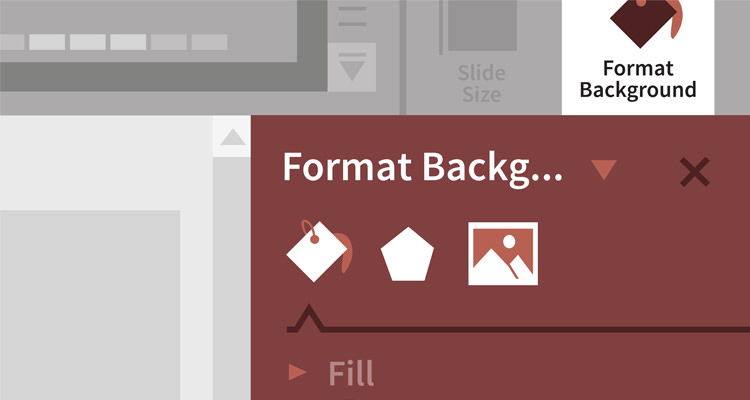
Module 4 Microsoft PowerPoint 2019
4.1 Create and manage slides
- Add and remove slides
- Insert new slides
- Copy and import slides and content
- Hide and delete slides
- Apply themes
- Change slide backgrounds
- Sidebar: Non-theme colors
- Divide presentations into sections
- Rearrange slides and sections
4.2 Insert and manage simple graphics
- Insert, move, and resize pictures
- Sidebar: Graphic formats
- Edit and format pictures
- Provide additional information about pictures
- Create a photo album
- Capture and insert screen clippings
- Insert and format icons
- Sidebar: Work with scalable vector graphics
- Draw and modify shapes
- Draw and add text to shapes
- Sidebar: Locate additional formatting commands
- Move and modify shapes
- Format shapes
- Sidebar: Connect shapes
4.3 Add sound and movement to slides
- Animate text and pictures on slides
- Sidebar: Animate this
- Sidebar: Morphing slide content into new forms
- Customize animation effects
- Sidebar: Bookmark points of interest in media clips
- Add audio content to slides
- Add video content to slides
- Compress media to decrease file size
- Sidebar: Hyperlink to additional resources
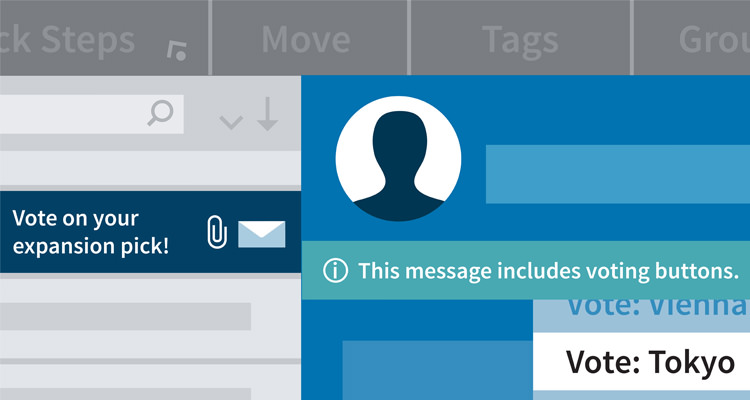
Module 5 Microsoft Outlook 2019
5.1 Send and receive email messages
- Create and send messages
- Create messages
- Troubleshoot message addressing
- Save and send messages
- Sidebar: Send from a specific account
- Attach files and Outlook items to messages
- Sidebar: New mail notifications
- Display messages and message attachments
- Display message content
- Display attachment content
- Display message participant information
- Respond to messages
- Sidebar: Resending and recalling messages
5.2 Organize your Inbox
- Display and manage messages
- Select the primary Inbox content
- Display and manage conversations
- Arrange messages by specific attributes
- Categorize items
- Sidebar: Store information in Outlook notes
- Organize messages in folders
- Sidebar: Print messages
5.3 Manage scheduling
- Display different views of a calendar
- Sidebar: Use the Date Navigator
- Schedule appointments and events
- Convert calendar items
- Sidebar: Add holidays to your calendar
- Configure calendar item options
- Schedule and change meetings
- Respond to meeting requests
ຮອບຝຶກອົບຮົມ ແລະ ຮູບແບບການຝຶກອົບຮົມ
ສຳລັບບຸກຄົນ — ຮອບຝຶກອົບຮົມທົ່ວໄປ
ຂະນະນີ້ຍັງບໍ່ມີຮອບຝຶກອົບຮົມເປີດຮັບສະໝັກ ລົງຊື່ຈອງໄວ້ໄດ້ເລີຍ ທີມງານຈະຕິດຕໍ່ກັບເປັນກຸ່ມທຳອິດເມື່ອເປີດຮອບຕໍ່ໄປ ຫຼື ສອບຖາມທາງ LINE ຫຼື ໂທ 02-570-8449 ຫຼື 088-807-9770
ສຳລັບອົງກອນ — In-house / Private Training
- ປັບເນື້ອໃນໃຫ້ກົງກັບເຄື່ອງມື ແລະ ວຽກຈິງຂອງທີມ
- ເລືອກວັນເອງ ຝຶກອົບຮົມທີ່ບໍລິສັດ ຫຼື ອອນລາຍສົດ
- ອອກໃບສະເໜີລາຄາໃນນາມນິຕິບຸກຄົນໃຫ້ຝ່າຍຈັດຊື້
ວິທະຍາກອນຜູ້ສອນ

ຄຳຖາມທີ່ພົບເລື້ອຍ
หลักสูตร Microsoft Office 2019 เหมาะกับใคร ต้องมีพื้นฐานอะไรมาก่อน
เหมาะกับ นักเรียนนักศึกษา · ครู อาจารย์ วิทยากรที่สนใจ · นักวิชาการ นักไอที หรือผู้ดูและระบบ พื้นฐานที่ผู้เรียนควรมี พื้นฐานการใช้งานคอมพิวเตอร์ เช่น Copy, Paste สร้างไฟล์และโฟลเดอร์ · การใช้งานระบบปฎิบัติการ Windows / MacOS หากไม่แน่ใจว่าพื้นฐานพอหรือไม่ ปรึกษาทีมงานได้ฟรีทาง LINE @itgenius หรือโทร 02-570-8449
หลักสูตร Microsoft Office 2019 ราคาเท่าไร ใช้เวลาเรียนกี่ชั่วโมง
ราคาปกติ 5,900 บาท ใช้เวลาอบรม 12 ชั่วโมง ราคานี้ยังไม่รวม VAT 7% (กรณีชำระในนามนิติบุคคล) ชำระค่าอบรมด้วยการโอนเข้าบัญชีบริษัท แล้วแจ้งชำระเงินผ่านหน้าแจ้งชำระเงินของเว็บไซต์ และขอใบเสร็จรับเงินหรือใบกำกับภาษีในนามบริษัทได้
เรียนจบได้รับ Certificate หรือไม่
ได้รับ ผู้ผ่านการอบรมทุกท่านจะได้รับใบประกาศนียบัตร (Certificate of Completion) จากสถาบันไอทีจีเนียส ใบประกาศแต่ละใบมีเลขที่ของตัวเอง ใครก็ตามที่มีเลขที่ใบประกาศตรวจสอบความถูกต้องออนไลน์ได้ที่หน้าตรวจสอบใบประกาศของสถาบัน จึงใช้แนบแฟ้มผลงานหรือส่งให้ฝ่ายบุคคลประกอบการพัฒนาบุคลากรได้
อบรมที่ไหน มีเรียนแบบออนไลน์หรือไม่
เรียนได้ทั้งแบบออนไซต์ที่สถาบันไอทีจีเนียส และนัดเรียนผ่านออนไลน์ และรับจัดอบรมเฉพาะทีม (In-house Training) ให้องค์กร สอบถามรอบและสถานที่ได้ที่ LINE @itgenius หรือโทร 02-570-8449
ถ้าเรียนไม่ทันหรือขาดเรียน มีเรียนซ้ำ/เรียนชดเชยหรือไม่
มี ผู้เรียนสามารถแจ้งขอเรียนซ้ำ (repeat) ในรอบถัดไปของหลักสูตรเดียวกันได้ฟรีตามเงื่อนไขของสถาบัน แจ้งชื่อหลักสูตรและรอบที่เคยเรียนกับทีมงาน แล้วทีมงานจะตรวจสอบและแจ้งรอบที่ยังมีที่นั่งว่างให้เลือก สอบถามได้ที่ LINE @itgenius หรือโทร 02-570-8449
สมัครเรียนหรือขอใบเสนอราคาในนามบริษัทได้อย่างไร
สมัครออนไลน์ได้จากแบบฟอร์มลงทะเบียนบนหน้านี้ ลงทะเบียนผู้เข้าอบรมหลายคนได้ในครั้งเดียว และกรอกเลขประจำตัวผู้เสียภาษีกับที่อยู่สำหรับออกใบกำกับภาษีได้ในฟอร์ม หรือขอใบเสนอราคา (Quotation) ในนามนิติบุคคลได้ทันทีจากปุ่มขอใบเสนอราคา สอบถามเพิ่มเติมโทร 02-570-8449 หรือ LINE @itgenius