AI · AIC-72

AI Video Generation for Business

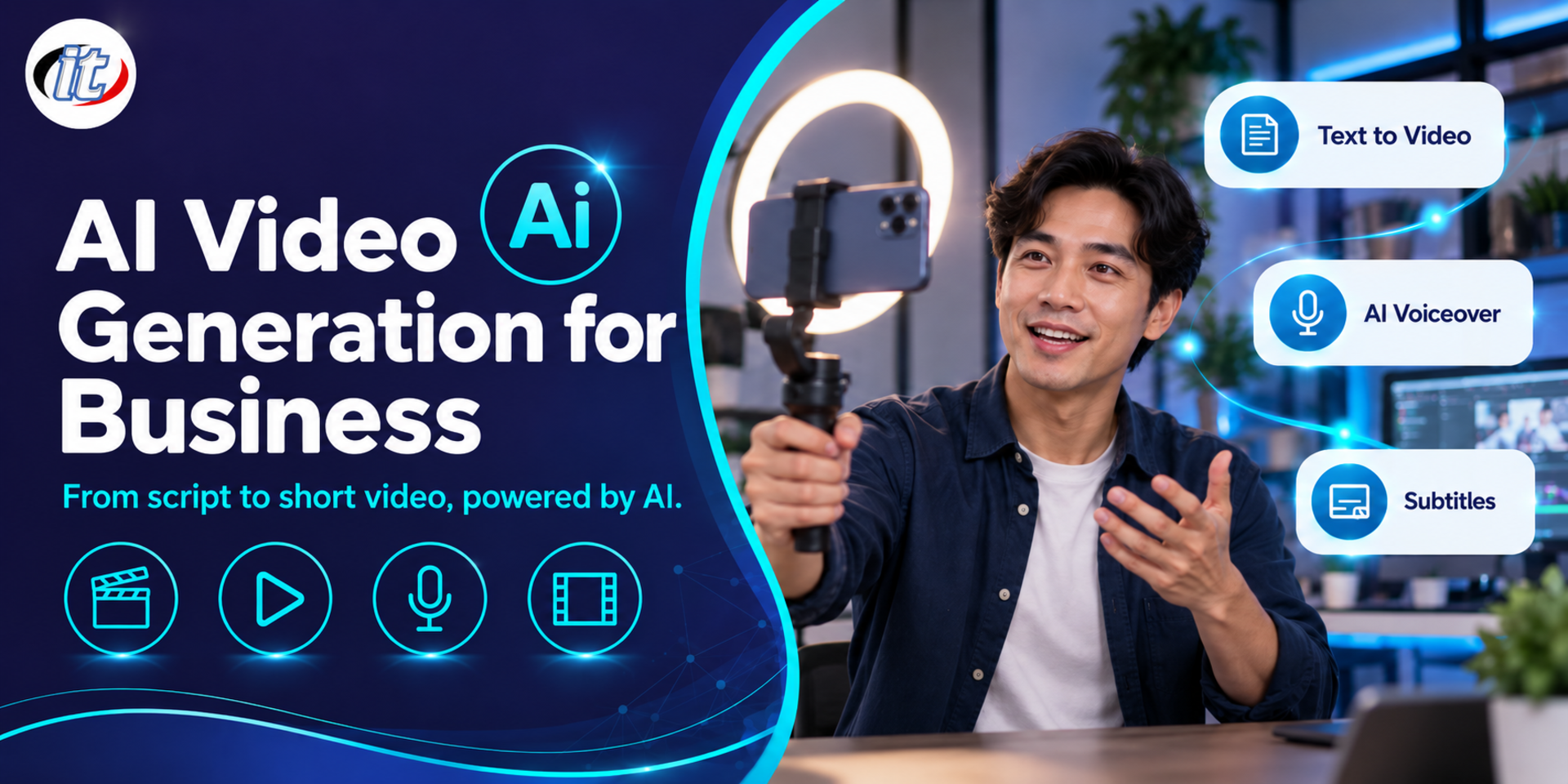
AI Video Generation for Business is a hands-on course in producing business video with AI, from storyboards and clips generated with Veo in Google Flow and Kling to keyframes that keep products consistent, Thai voice-over, AI presenters and editing in CapCut. It suits marketing teams, content creators and corporate communications staff, and you leave with an ad video ready in several aspect ratios.

Updated
From 6,210 THB / person 6,900 −10% excl. VAT 7% · group rates available
PDFDownload the course outline
  • Duration12 hours · 2 days
  • FormatOnsite / live online
  • Next roundOn request
  • CertificateIncluded

Course overview

Short video has become the main medium for marketing and internal communication, yet every shoot needs a crew, a location and a budget. The latest AI video tools let small teams create ads, animated product shots and explainer videos from text and still images, with sound built in. The results are only usable, though, when the team can plan shots, keep products and characters consistent, and know which shots are worth spending credits on.

This course covers business video production with AI from start to finish. Learners write a brief, build a storyboard and shot list, use the language of film to write prompts, and generate clips with Veo in Google Flow and with Kling from text, from images and from keyframes that lock the product's appearance. They then add Thai voice-over and sound with ElevenLabs, make presenter videos with HeyGen, and assemble, caption and reformat the work in CapCut, with guidance on copyright, likeness and voice rights, consent and platform terms. The course closes with a workshop that produces a complete ad package from a real brief. (2 days, 6 hours per day, 12 hours in total, Intermediate level.)

What you’ll gain

  • Choose the right type of AI video and tool for the job, the credit budget and the quality needed
  • Turn a brief into a storyboard and shot list ready for AI generation
  • Write video prompts in the language of film: shot size, camera angle, camera movement and lighting
  • Generate clips with Veo in Flow and with Kling from text, reference images and start and end frames
  • Keep products and characters consistent across shots with keyframes and reference images
  • Produce Thai voice-over, music, sound effects and AI presenter videos
  • Edit, add Thai captions and export multiple aspect ratios in CapCut
  • Check copyright, likeness and voice rights, and platform terms before publishing

Who this course is for

  • Marketing teams, content creators and social media admins who produce short videos regularly
  • Business owners and online sellers who want product ads without organising a shoot every time
  • HR, training and corporate communications teams who make explainer and internal videos
  • Agencies and freelancers who want to use AI for pre-visualisation and production work

Prerequisites

  • Some experience creating text or images with generative AI such as Gemini, ChatGPT or an image tool
  • Basic computer skills, including handling image, audio and video files
  • No video editing or filming experience required
  • An account on a video generation tool with enough credits, or the learner's own trial plan

Curriculum

Course Details

A 2-day hands-on course, 6 hours per day (12 hours in total, 09:00-16:00), at Intermediate level for people who have used generative AI before. It uses Veo in Google Flow, Kling, ElevenLabs, HeyGen and CapCut through the learner's own or company accounts; most video generation credits require a paid plan. The course focuses on generating new footage with AI, unlike AI Video Editor, which edits existing footage with a coding agent, and it builds on AI Content Creator for Business, which covers all content types. Learners take home brief, storyboard and shot list templates, a video prompt set, a keyframe workflow example, the ad video made in the workshop and a pre-publication checklist.

Day 1 Planning Shots and Generating Clips with AI

Section 1: AI Video for Business and Choosing Tools

  • How text-to-video, image-to-video, avatar video and video-to-video differ
  • The strengths of Veo, Kling and HeyGen, and which jobs still call for a real shoot
  • Clip length, resolution, built-in audio and credit cost per second
  • Business formats: 15-30 second product ads, explainers and training videos
  • Setting up a team workflow from brief to approval

Section 2: Lab: Storyboards, Shot Lists and Visual Language for Prompts

  • Use Gemini to break a creative brief into a script, storyboard and shot list with a three-second hook
  • Shot sizes, camera angles and camera moves such as close-up, dolly, orbit and handheld
  • Lighting, lenses, mood, dialogue and ambient sound in prompts
  • Counting shots and credits before generating anything
  • Lab: build a six-shot ad storyboard with a prompt for each shot

Section 3: Lab: Generating Clips with Veo in Google Flow

  • Start a project in Flow and pick the model and mode that make best use of credits
  • Generate clips from text with built-in dialogue and sound effects
  • Use reference images of the product, characters and style to control the look
  • Set start and end frames, and extend clips so they flow together
  • Lab: create the opening shot and product shot from your own storyboard

Section 4: Lab: Generating Clips with Kling

  • Image-to-video from product photos and brand stills
  • Start and end frames to control transitions and movement
  • Multi-shot generation and keeping a character or product consistent across shots
  • Motion control that follows movement from a reference video
  • Lab: create the remaining shots and compare the results with Veo

Section 5: Lab: Keyframe Workflow and Continuity

  • Create still keyframes with Nano Banana before turning them into video
  • Character sheets and product sheets to reference in every shot
  • Keeping colour, lighting and wardrobe consistent across the story
  • Checking logos, labels, hands and on-screen text, which often go wrong
  • Lab: build a full keyframe set for the story and render it as clips
Day 2 Sound, Presenters, Editing and Real Projects

Section 6: Lab: Thai Voice-over and Sound with ElevenLabs

  • Write a voice-over script that fits the clip length and sounds natural
  • Generate Thai voice-over and adjust emotion, pacing and pronunciation
  • Create sound effects and background music that match the mood
  • When to use the video model's built-in audio and when to add sound separately
  • Lab: add voice-over and sound to the clips from Day 1

Section 7: Lab: Presenter Videos with HeyGen

  • Choose a stock avatar, or create an avatar of yourself with consent
  • Produce a Thai presenter video from a script
  • Translate a video into other languages with lip sync for overseas markets
  • Jobs that suit AI presenters, such as training videos, product introductions and internal announcements
  • Lab: make a 45-second product introduction with an AI presenter

Section 8: Lab: Assembly and Captions in CapCut

  • Bring clips, voice-over and music onto the timeline and cut to the rhythm
  • Generate Thai captions automatically and correct errors
  • Duck music under speech and use transitions with restraint
  • Add logos and calls to action, and make several versions to test hooks
  • Lab: export the same video in 9:16, 1:1 and 16:9

Section 9: Copyright, Likeness, Voice Rights and Platform Terms

  • AI video is not automatically free of copyright, and your rights depend on the plan you use
  • Never use a real person's face or voice without written consent
  • Voice cloning and avatars may only use voices and images you have rights to and permission for
  • Labelling AI content under YouTube, TikTok and Meta policies
  • PDPA for customer and staff images, and a pre-publication checklist

Section 10: Workshop: A Complete Ad Video Package

  • Workshop: take a real brief and plan the storyboard and credit budget
  • Generate the main clips with Veo or Kling, using keyframes to lock the product
  • Add Thai voice-over, music and captions, then export three aspect ratios
  • Review against the rights and brand checklist, then present the work for feedback

Schedule & training options

For individuals — public rounds

No public rounds are open right now. Join the waiting list and we will contact you first when the next round opens, or ask us on LINE. Or call 02-570-8449 or 088-807-9770

For organisations — in-house / private

  • Tailor the content to your team’s tools and projects
  • Your dates, at your office or live online
  • Quotation with tax ID for procurement
Corporate training quote

Instructors

Frequently asked questions

What should an AI video prompt include?

Write in the language of film: shot size such as close-up, camera angle, camera movement such as dolly or orbit, lighting, lens and mood, plus dialogue and ambient sound if the model generates audio. Write one prompt per shot following your storyboard, and work out the number of shots and credits needed before you start generating.

How do you keep a product or character consistent across shots in AI video?

Use a keyframe workflow: create a still for each shot first, for example with Nano Banana, and keep a character sheet or product sheet as a reference for every shot. Then animate the stills with image-to-video or set start and end frames in Veo or Kling, and check logos, labels, hands and on-screen text, which often come out distorted. The course builds a full set of keyframes before rendering clips.

How do you adapt one video for several platforms?

Keep the key elements near the centre of the frame when you generate footage so they survive cropping. Assemble the clips, voice-over and music on a timeline in an editor such as CapCut, add Thai subtitles and proofread them, then export 9:16 for stories and short video, 1:1 for feeds and 16:9 for YouTube or websites, adjusting text and logo positions for each ratio.

Who is the AI Video Generation for Business course for, and what should I know beforehand?

It suits marketing teams, content creators and social media admins who produce short videos regularly, business owners who want product ads without a shoot every time, and HR or corporate communications teams making internal videos. You should have used generative AI for text or images and be able to handle image, audio and video files; no editing or filming experience is needed.

What will I be able to do after the AI Video Generation for Business course?

You will be able to turn a brief into a storyboard and shot list, write cinematic video prompts, generate clips with Veo and Kling using keyframes to keep products consistent, produce Thai voice-overs with ElevenLabs and presenter videos with HeyGen, and edit and export several aspect ratios in CapCut. Participants who complete the training receive a Certificate of Completion with its own number, which can be verified online.

What do I need to prepare for the AI Video Generation for Business course?

You use Veo in Google Flow, Kling, ElevenLabs, HeyGen and CapCut through your own or your organisation's accounts. Have a video generation account with enough credits or a trial plan, since most video credits require a paid plan. You take home brief, storyboard and shot list templates, a set of video prompts and a pre-publication checklist.