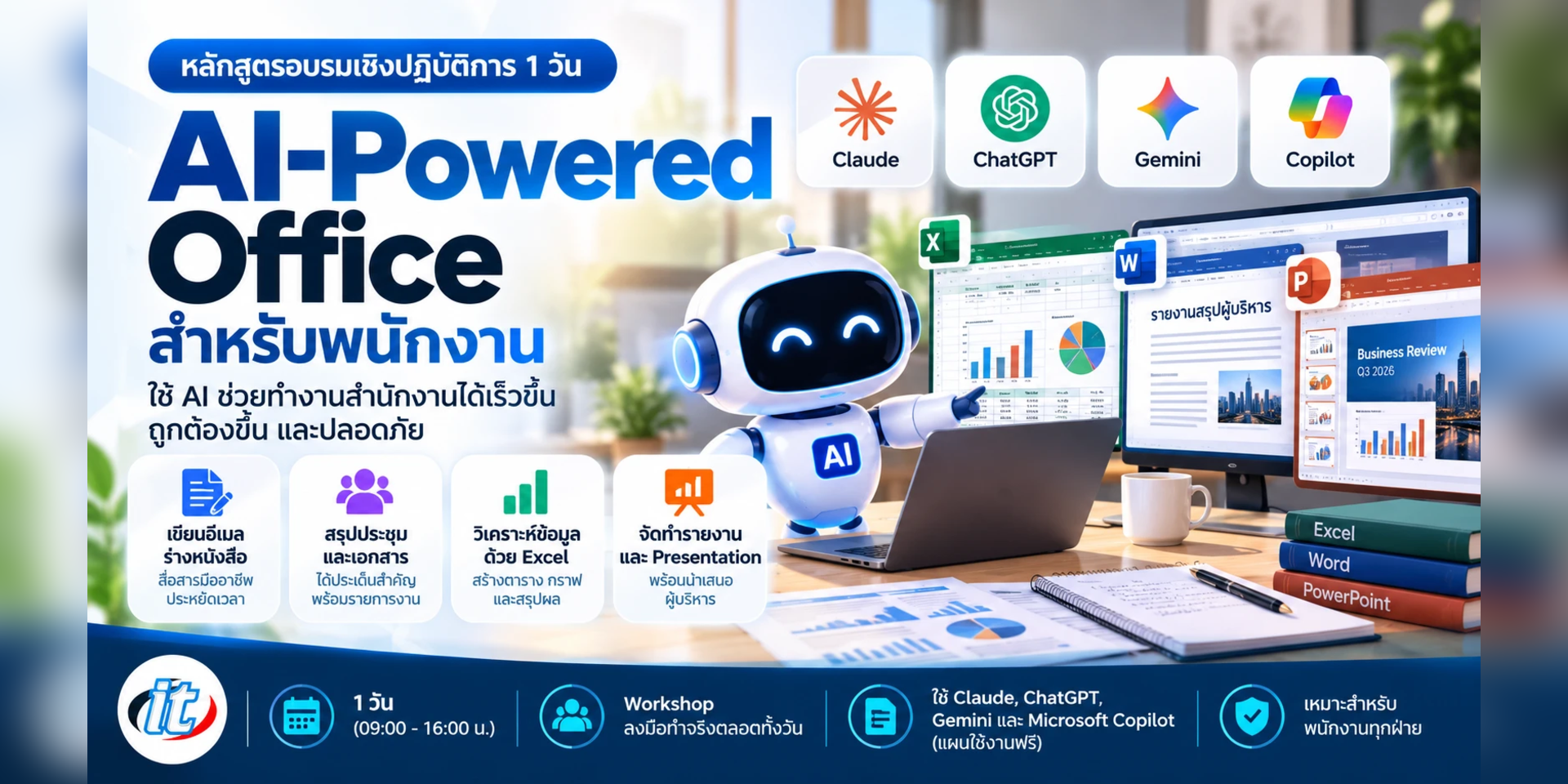
AI-Powered Office for Employees is a hands-on course comparing the free tiers of Claude, ChatGPT, Gemini and Copilot, then using them to write emails, summarise meetings, research and produce Excel workbooks, Word reports and PowerPoint slides safely. It suits office staff in any department, and you leave with a full set of work files and a personal prompt library.
Almost every employee can now use AI tools for free, including Claude, ChatGPT, Gemini and Microsoft Copilot. Yet many people still use AI only for general questions, get answers that do not fit the task, rewrite them several times, are unsure which tool suits which job, and are not clear which company information may go into AI and which should not.
This course shows you how to use AI systematically for the office work you do every day. It starts by comparing the free tiers of Claude, ChatGPT, Gemini and Copilot on the same task, then moves on to writing prompts that get the result you need, drafting emails and letters, summarising meetings and researching with cited sources. In the afternoon you produce real files: an Excel workbook with formulas and charts, a Word report and PowerPoint slides, using free AI tools together with the Office apps you already have. Everything follows the principle that AI helps you think and a person checks the result, in line with PDPA, and the whole day builds on one scenario at the fictional company SiamNova Trading. (1 day, 6 hours, Beginner level.)
What you’ll gain
Understand the capabilities, strengths and limits of the free tiers of Claude, ChatGPT, Gemini and Copilot, and choose the right one for each task
Write well-structured prompts and refine the output until it is usable
Use AI to draft and improve emails, letters and memos, and summarise documents and meetings faster
Use AI to research with cited sources and check accuracy before using the results
Use AI to analyse data from Excel files, create formulas and summarise results in tables and charts
Use AI to produce clear Word reports and PowerPoint presentations ready to present
Use AI safely without exposing personal data or confidential company information, in line with PDPA
Build a personal prompt template library for routine work that you can use straight after the course
Who this course is for
Office staff in every department, such as admin, HR, sales, marketing, accounting and finance, purchasing and planning
Secretaries and executive assistants who regularly prepare letters, meeting summaries and presentations
Staff who gather data and produce weekly or monthly reports
Team leads who want their team to use AI to a consistent standard
People who have never used AI, or who use it but do not yet get the results they need
Prerequisites
Comfortable using a computer, the internet and email
Basic Microsoft Excel, Word and PowerPoint skills, such as opening, editing and saving files
Able to type in Thai and English
AI tool accounts set up and tested before the training day
No coding or previous AI experience is needed
Curriculum
Course Details
A 1-day, 6-hour hands-on course (09:00-16:00) at Beginner level for office staff in every department. What sets it apart is comparing the free tiers of Claude, ChatGPT, Gemini and Copilot on the same task, and producing real Office files, namely an Excel workbook with formulas and charts, a Word report and a 5 to 7 slide PowerPoint presentation, with free AI tools and the Office apps learners already have. It does not use Microsoft 365
Copilot. If your organisation has Copilot licences for the Office apps, see Microsoft 365 Copilot for Employees, and for a department-by-department approach to AI at work, see AI for Workforce. Learners use their own free accounts or work accounts in line with company policy. The institute does not provide accounts or licences. Learners take home the course handbook, an AI tool comparison table, sample data files, a Thai prompt template library, a data safety checklist and an AI output checklist.
Day 1: AI-Powered Office Productivity
Section 1The AI Landscape: Choosing the Right Free Tool for the Job
An overview of the free tiers of Claude, ChatGPT, Gemini and Microsoft Copilot: core capabilities, strengths and quotas that reset periodically
Comparing the capabilities office work needs: file upload, web search, data analysis, creating Office files and image generation
How free Copilot differs from Microsoft 365 Copilot, which works inside Word, Excel and PowerPoint and needs a paid licence
Lab: send the same task to several tools, compare Thai language quality, writing and summaries, and build your own tool selection table
Section 2Lab: Data Safety and PDPA
Information that should not go into AI: personal data, national ID numbers, customer data, contracts and confidential business information
PDPA principles that apply to everyday AI use, and working in line with your organisation's policy
Privacy settings in each tool, and the risk of incorrect answers (hallucination)
Lab: mask data in a sample document using a checklist before sending it to AI
Section 3Lab: Prompt Engineering for Office Work
A prompt structure that works: role, context, task, output format and constraints
Giving examples, setting tone and formality, and telling AI to ask questions when information is missing
Refining the result step by step instead of starting over
Lab: write a short and a structured prompt for the same task, then save the one that works as a template
Section 4Lab: Writing Emails, Letters and Memos
Draft emails, official and business letters, memos and internal announcements suited to the reader
Adjust formality, translate and make the wording sound natural
Check spelling and the consistency of names, figures and dates in a document
Lab: reply to a customer email and draft a letter to SiamNova Trading branches with at least two AI tools
Section 5Lab: Summarising Long Documents and Meetings
Upload a PDF or Word file and have AI summarise the key points for a specific reader
Turn meeting notes into decisions, action items, owners and due dates
Ask follow-up questions about the document and check the summary against the original
Lab: turn sample meeting notes into a decisions and action items report ready to share with the team
Section 6Lab: Research with Cited Sources
Search the web through AI and get answers with links to their sources
Deep research in the tools that offer it on a free tier, and its quota limits
Check sources, the date of the information and its reliability before using it
Lab: research information for a decision and summarise it in a one-page brief with verified sources
Section 7Lab: Analysing Excel Data with AI
Upload an Excel or CSV file and have AI check data quality and summarise the overall picture
Compare, find trends and rank data with plain-language instructions
Check the figures AI reports against the source data before using them
Ask follow-up questions about the results, such as which branches grew or declined and what to investigate next
Lab: analyse SiamNova Trading's sample monthly sales by branch and product
Section 8Lab: Excel Formulas, Charts and Files You Can Keep Using
Have AI write and explain formulas such as SUMIFS, XLOOKUP and IF, and conditional formatting
Ask AI to create an .xlsx file with summary tables and charts, then open and check it in Excel
Choose the right chart for the data and fix formulas when the results are wrong
Structure the file for reuse: separate raw data from summary sheets and give columns clear names
Lab: finish with a sales analysis workbook with working formulas and charts
Section 9Lab: Word Reports and PowerPoint Presentations
A readable report structure: executive summary, performance, key issues and recommendations
Ask AI to create .docx and .pptx files, specifying length, colour scheme and Thai fonts
One idea per slide, headlines that state the conclusion, and choosing the right chart for the data
Create slide illustrations with AI in tools that support it, and check the terms for using the images
Lab: turn the analysis into a draft report and slide deck, then refine them in Word and PowerPoint
Section 10Master Workshop: SiamNova Trading Office Day
Workshop: combine the day's work into a monthly summary report in Word and a 5 to 7 slide PowerPoint presentation
Check that figures match across Excel, the report and the slides using the AI output checklist
Collect the prompts that worked during the day into a personal prompt template library
Present your work, share techniques and plan how to apply them to your real job
Schedule & training options
For individuals — public rounds
No public rounds are open right now. Join the waiting list and we will contact you first when the next round opens, or ask us on LINE. Or call 02-570-8449 or 088-807-9770
How does this course differ from AI for Workforce and Microsoft 365 Copilot for Employees?
This course focuses on two things: comparing the free tiers of Claude, ChatGPT, Gemini and Copilot on the same task, and producing real Office files, namely an Excel workbook with formulas and charts, a Word report and a 5 to 7 slide PowerPoint deck, with free AI tools and the Office apps you already have. It does not use Microsoft 365 Copilot. If your organisation has Copilot licences for Word, Excel and PowerPoint, see Microsoft 365 Copilot for Employees. If you want a working-day approach with prompt kits for each department, see AI for Workforce.
Which accounts do I need, and does the institute provide them?
The institute does not provide accounts or licences. You use your own free accounts or work accounts in line with your organisation's policy. We recommend a Claude account, a ChatGPT account, a Google account for Gemini and a Microsoft account for Copilot, and you should sign in to every tool before the training day. If your organisation allows only two of the tools, you can still take the course and see the others in the instructor's demonstrations.
Do I need a paid AI plan or Microsoft 365 Copilot?
No. Every workshop is designed to work with free tiers and the Excel, Word and PowerPoint you already have. Free tiers have limited quotas and their features change often, so the course shows you how to switch to a backup tool when you reach a limit, and the examples follow what each tool offers on the training day.
Can I use real company data with AI?
The course uses only sample data and documents from the fictional company SiamNova Trading. When you apply it to real work, remove or mask personal data, customer data and confidential information first, especially on a personal account, and check with your IT team and company policy which account may be used for which level of data. You take home a data safety checklist.
I have never used AI and only know basic Excel. Will I keep up?
Yes. This is a Beginner course, and you do not need to code or have used AI before. You only need to be able to open, edit and save Excel, Word and PowerPoint files. The instructor walks you through setting up and using each tool step by step, and you practise asking AI to explain every Excel formula it writes for you.
Are the Excel, Word and PowerPoint files that AI creates ready to use straight away?
They make good drafts, but always check them before use. In the course you open the files in Excel, Word and PowerPoint to check formulas, figures, Thai fonts and formatting, and refine them yourself. In the master workshop you also check that figures match across the workbook, the report and the slides using the AI output checklist.
Many employees already know about AI and have asked it the odd question, yet it has not become part of their everyday work. They are unsure which tasks to start with, what data they may or may not enter, and how far the output can be trusted, so AI gets used…
AI has become a basic workplace tool, yet many employees still do not know how to start, what work it fits, or what to watch out for. This one-day (6-hour) course is designed for people in every function who have no IT background: understand how AI works…
Many organisations have already switched on Copilot in Microsoft 365, yet plenty of staff ask it a few questions, get a vague answer and go back to working the old way. The problem is rarely the tool. It is not knowing what Copilot can do in each app, how to…